ACTORS: How Can I Update Role-Matching Criteria?

To update my role matches, I start with 3 profile fields: playing age, ethnic appearance, and gender to play. Then I check my location, work details, regions, exclusions, and notification settings.
My profile controls role eligibility; my alert settings control which matches reach me. I use this order:
- Check my casting profile: Keep my details in line with my headshots, résumé, and the roles I can portray.
- Set my alerts: Choose work regions, exclude unwanted project or role types, and check email, app, and device notification settings.
- Save and verify: Reopen each page, then review future alerts, not notifications sent before my changes. If matches are missing, I check required fields, filters, and permissions.
- Check Castmenow separately: Review my auto-apply preferences and recent submissions; those settings do not change my casting profile.
I <u>review these settings when my availability or role preferences change</u> and note what I changed so I can track the results.
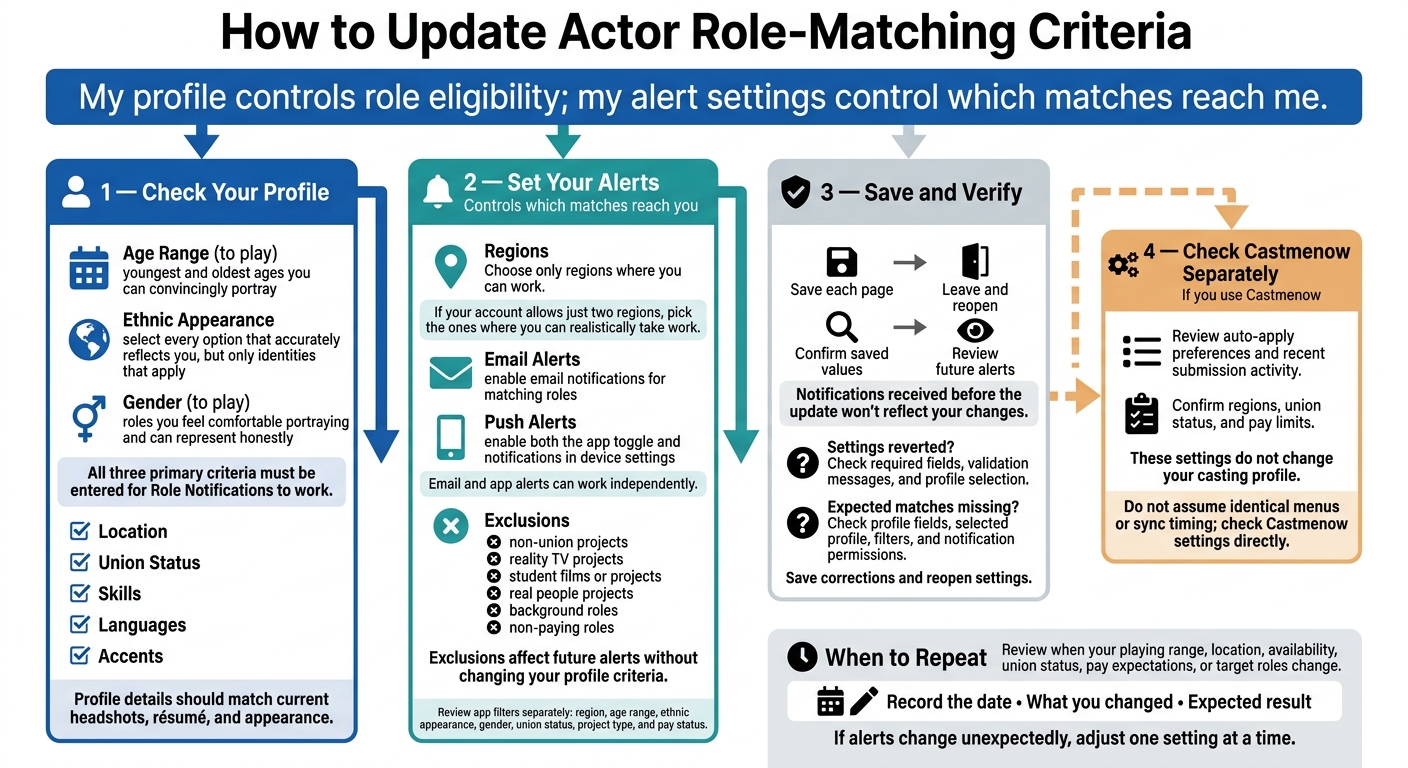
How to Update Actor Role-Matching Criteria
1. Check Your Casting Profile
Menu names vary by platform. Make sure your profile matches your current headshots, résumé, and appearance. Building a role-specific portfolio can further help you align with these criteria. These fields determine whether you qualify for a match, so update them before changing your alerts.
Review Playing Age, Ethnic Appearance, and Gender
Set Age Range (to play) to the youngest and oldest ages you can convincingly portray. Check it again when your appearance or playing range changes.
For Ethnic Appearance, select every option that accurately reflects you - but only identities that apply. Review this field if the platform changes its terms.
Check Gender (to play) against the roles you feel comfortable portraying and can represent honestly. Read the label carefully, because each platform may word it differently.
Complete every required matching field. All three primary criteria must be entered for Role Notifications to work. Update your location, union status, skills, languages, and accents to match your résumé, too.
Once your profile is accurate, adjust your role preferences and alert filters to choose which matches reach you.
sbb-itb-daa9c42
2. Adjust Role Preferences and Alert Filters
Check regions, alert delivery, and exclusions separately. The controls available to you depend on the platform.
Choose Work Regions and Turn On Alerts
Once you’ve confirmed your profile fields, set the filters that determine which roles reach you. Go to About Me → My Account → Role Matching & Notifications, or the closest matching page. Menu names vary by platform.
Choose only regions where you can work, and update them when your availability changes. If your account allows just two regions, pick the ones where you can realistically take work.
Want alerts by email? Enable email notifications for matching roles. For push alerts, switch on both the app toggle and notifications in your device settings. Email and app alerts can work independently.
Check Project and Role Exclusions
Check the available exclusions for non-union projects, reality TV projects, student films or projects, real people projects, background roles, and non-paying roles. Each exclusion can keep those roles out of future alerts without changing your profile criteria. Select only the categories you want to leave out, or use time-saving submission tips to manage your workflow.
App filters may also cover region, age range, ethnic appearance, gender, union status, project type, and pay status. Review those controls separately, too.
Understand Profile Criteria vs. Alert Filters
Use this table to tell eligibility settings apart from alert delivery settings.
| Setting type | Where to review it | What it controls | How to verify it |
|---|---|---|---|
| Profile criteria | Profile settings or About Me → My Profile | Actor details used to assess role fit, such as age range to play, ethnic appearance, and gender to play | Reopen your profile and confirm the saved values |
| Alert filters | Notification settings or About Me → My Account → Role Matching & Notifications | Selected regions, alert delivery, and available exclusions | Reopen the settings and check future alerts |
3. Save Changes and Verify Results
After updating your profile and alert filters, confirm that every change saved and still matches the roles you want.
Save and Reopen Each Settings Page
Click Save for profile edits and Save Changes for Role Matching & Notifications, if your platform uses that label. Leave each page, then reopen it to check that your edits stayed in place.
If a setting reverts, look for a required field, a validation message, or the wrong profile selection before saving again. Then check the results using future alerts only.
Check New Alerts and Missing Matches
Compare new alerts with your saved criteria. Notifications received before the update won't reflect your changes.
If expected matches aren't appearing, check your profile fields, selected profile, filters, and notification permissions. Save any corrections, then reopen the settings to confirm they stuck.
Review Castmenow Preferences and Submission Activity
If you use Castmenow (Cast Me Now), check its connected preferences next. After editing connected profiles, review Castmenow preferences and recent submission activity to confirm they still match your regions, union status, and pay limits.
Don't assume Castmenow uses the same menus or sync timing as your casting platform. Check its settings directly.
Conclusion: When to Review Your Settings
Once you confirm your updates, review your settings whenever your playing range, location, availability, union status, pay expectations, or target roles change. Follow the same routine: check your profile details, adjust regions and exclusions, save each page, and review the next few alerts. This helps keep future role matches in line with your current profile.
Record the date, what you changed, and the result you expect. If alerts change unexpectedly, adjust one setting at a time to pinpoint the cause.
If you use Castmenow, review your auto-apply preferences after changing your profile and check recent submission activity.
FAQs
How long should I wait to see updated role matches?
After updating your role-matching criteria, check your “Discover”/match prediction feed the next day, then daily for a few days as new results come in.
Review match accuracy weekly, especially after changing keywords, filters, or preferences. Matching takes repeated checks and adjustments. If results still miss the mark, update your profile and preferences, then follow the same checking schedule.
What if irrelevant alerts continue after I save changes?
If you still get irrelevant alerts after saving your changes, your profile or preferences may contain outdated information. Reset your preference surveys and clear your search history to remove old data. Check your role filters, too - they may be too broad.
Manually skip roles that don’t match your goals to help the system learn your preferences. Make sure your connected profiles have consistent information and are fully synced with Castmenow.
How can I verify Castmenow follows my updated preferences?
Check your Discover or Match Prediction feed regularly to see which roles Castmenow prioritizes. Use your centralized dashboard to track submissions and performance trends, and check whether the roles you’ve submitted for fit your current career goals.
If matches feel off, manually skip those roles to help the system learn your preferences. You can also reset your preference surveys or clear your search history so the algorithm reflects your latest criteria.