How Do I Enable Casting Alerts for Saved Searches?
I enable casting alerts in 2 places: the saved search and my phone’s notification settings. In Casting Networks, I go to Billboard → filter icon → Saved Searches → pencil icon, turn on Get Push Alerts, and tap Done. Push alerts require an active Premium membership; Open Call searches don’t offer notifications.
Here’s what else I check:
- Search filters: I streamline my daily casting search by saving role, location, and availability settings that fit the work I can accept.
- Email and phone settings: I manage email alerts separately, allow phone notifications, and confirm Android support before relying on it.
- Missing alerts: I check for newly posted matches, then review Focus modes, delivery schedules, connection issues, and background restrictions. If needed, I contact support with device and search details - not passwords or codes.
<u>An alert is not a submission.</u> I still review the listing’s pay, dates, deadline, and requirements. Any submission automation stays separate from my alert settings.
Create and Manage Saved Role Searches
Once you’ve allowed notifications, create the saved search that will trigger them.
Set Role, Location, and Availability Filters
Create a separate search for each medium. Filter by role type, union status, pay, location, and playing age. Choose an age range you can reasonably play, then check audition, rehearsal, production, performance, or delivery dates against your calendar.
Remote auditions don’t guarantee remote work. Check each listing’s audition method and work location. Read for any requirements the search filters don’t cover, too.
Once you’ve narrowed the results, save the search and attach alerts.
Save Your Search and Set Email Alerts
Open the role-search page, apply your filters, and review the results. Use your account’s save-search controls to save and name the search, then turn on email alerts if your account offers them.
To rename or delete a search, open the saved-search controls. If you can’t edit its filters, save a new search with the revised settings. Confirm that the saved search supports alerts before relying on email delivery.
sbb-itb-daa9c42
Set Up Mobile Push Alerts
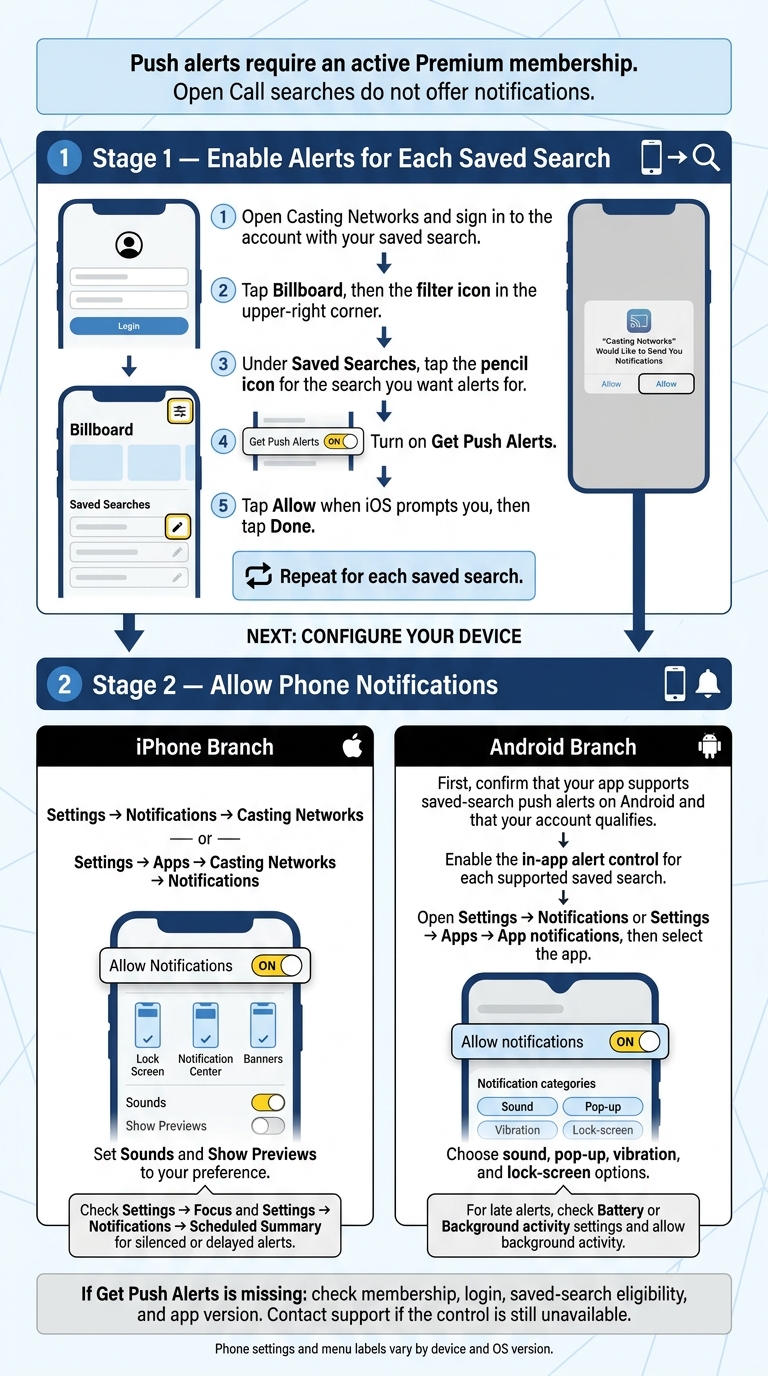
Enable Casting Networks Push Alerts
To get alerts on your phone, turn on Get Push Alerts for your saved search.
Turn On Alerts for Each Saved Search
Casting Networks offers push alerts to active Premium Members. You’ll need to turn them on for each saved search.
- Open Casting Networks and sign in to the account with your saved search.
- Tap Billboard, then the filter icon in the upper-right corner.
- Under Saved Searches, tap the pencil icon for the search you want alerts for.
- Turn on Get Push Alerts.
- Tap Allow when iOS prompts you, then tap Done.
If Get Push Alerts is missing, check your membership, login, saved-search eligibility, and app version. Contact support if the control still isn’t available.
Open Call searches do not offer notifications.
Allow Notifications on iPhone
Open Settings > Notifications > Casting Networks, or Settings > Apps > Casting Networks > Notifications. Turn on Allow Notifications, then choose where alerts appear: Lock Screen, Notification Center, or Banners. Set Sounds and Show Previews to your preference.
iOS labels can vary by version. Check Settings > Focus for modes that could silence saved-search alerts. Also review Settings > Notifications > Scheduled Summary to make sure alerts aren’t held for later delivery.
If you also use an Android device, check its notification settings, too.
Check Android Support and Allow Notifications
First, confirm that your app supports saved-search push alerts on Android and that your account qualifies. Then enable the in-app alert control for each supported saved search.
- Open Settings > Notifications or Settings > Apps > App notifications, then select the app.
- Turn on Allow notifications and the relevant Notification categories.
- Choose your sound, pop-up, vibration, and lock-screen options.
Android menus vary by device and version. If saved-search alerts arrive late, check the app’s Battery or Background activity settings and allow background activity.
Check Alert Delivery and Fix Problems
If alerts are on but nothing arrives, check your search, device settings, and notification channel.
Check for New Matching Roles
- Check your profile details for role matching. Make sure your location, availability, age range, representation, and role preferences are current.
- Review the saved search. Check its name, filters, and alert toggle.
- Look for new matches. Open the saved search and confirm that the role was newly posted. You may also want to compare manual and automated casting submissions to see which method best suits your workflow. Previously viewed listings and filter changes may not trigger alerts.
- Review notification history. Check your phone’s notification center or the app inbox.
- Check email delivery. Look for alert messages in your inbox, spam, junk, promotions, and filtered folders.
If there are no new matches, record your original filters before temporarily broadening one or two criteria. Leave alerts on and wait for a new posting, then restore your filters. Reopening the app alone may not trigger a new alert.
Troubleshoot Missing or Delayed Alerts
If a new match exists but no alert arrived, check the channel where you expected to receive it.
| Symptom | Possible Cause | Check or Fix |
|---|---|---|
| No push alerts arrive | Phone permissions block delivery | Check notification permissions. |
| Only one search stays silent | Alerts are off for that search | Turn on the search’s alert toggle. |
| Alert control is missing | Account is ineligible | Ask support to confirm eligibility. |
| A specific search type never sends alerts | Search-type limits | Confirm that the search type supports alerts. |
| Few or no new matches appear | Filters are too narrow | Broaden criteria temporarily. |
| Alerts stop at certain hours | Focus or Do Not Disturb schedules | Check scheduled modes and allowed apps. |
| Alerts arrive after reconnecting | Unreliable connection | Switch to a reliable connection. |
| Alerts are delayed in the background | Background restrictions | Review the app’s background restrictions. |
| Problems continue after updates | Outdated software | Update the app and phone, then restart both. |
For late alerts, compare when the role was posted, when the notification arrived, and when you opened the listing. The role may have expired, been filled, reached its submission cap, or been removed. Also check your phone’s date, time zone, and any alert-summary schedule.
If these checks don’t solve the problem, contact support. Include your device model, OS version, app version, saved-search name, date, time, and time zone. Remove private details from screenshots, and never share passwords, codes, or payment information.
Conclusion: Review Settings and Matching Roles
Check each saved search weekly. Make sure its filters still match your goals, keep push alerts on, and confirm that new listings matching that search trigger notifications.
An alert is not a submission. Treat it as a prompt to review a role, not a final decision. Before applying, open the full listing and check the pay, dates, deadline, and submission requirements.
Keep Submission Automation Separate From Alerts
Keep submission automation separate from alert settings. Castmenow (Cast Me Now) is an optional AI-powered submission assistant, not a casting marketplace. Manage alerts in the casting app and your phone’s settings, and review Castmenow’s permissions before enabling automation. Alerts notify you; automation submits for you.
FAQs
Will overlapping saved searches send duplicate alerts?
The available information doesn’t confirm whether overlapping saved searches send duplicate alerts. The system tracks submissions to prevent duplicate applications, but that doesn’t tell us how it handles alerts.
If you’re getting unwanted or repeated alerts, check your alert filters in your account settings. You can also clear your search history and reset your preference surveys so results better match your current role goals.
Can I pause alerts without deleting my search?
The provided documentation doesn’t list a built-in way to pause casting alerts without deleting your search. To get fewer notifications, you can change your account’s notification settings or narrow your alert filters.
In Castmenow, you can also skip roles or change your submission preferences to help the system learn your updated criteria while keeping your saved searches. The documentation doesn’t describe these changes as pausing alerts.
Will alerts sync across my devices?
Yes - alerts go to the devices you’ve enabled in your notification settings. For saved role alerts, choose email or app/device notifications. For push alerts, both settings must be on: the app’s alert toggle and notifications in your device settings.
Changes apply only to future alerts, not notifications already sent. Review your Role Matching & Notifications settings, then check that the next alerts arrive.