How CMMC Protects Casting Data

If casting data touches a DoD contract, you need more than basic file sharing and passwords. I’d boil the article down to this: first map where actor and project data lives, then lock down access, encrypt files, keep logs for at least 90 days, review backups, and check every cloud or automation vendor in scope.
Here’s the short version in plain English:
- CMMC applies when a casting workflow stores, processes, or sends FCI or CUI tied to a DoD contract.
- Sensitive casting data can include names, phone numbers, payment details, contracts, credentials, headshots, reels, and project emails.
- I need to know where that data sits: inboxes, cloud drives, laptops, external drives, portals, chat tools, and connected apps.
- I then match each data type to core control areas like access control, authentication, encryption, media handling, and audit logging.
- For protection, the basics are simple: individual accounts, role-based access, phishing-resistant MFA, encrypted storage and transfer, central logs, and tested backups.
- Vendors matter too. If a cloud tool or automation app handles in-scope data, I have to review its hosting, incident process, data separation, and shared responsibility model.
- One point stands out: using a commercial cloud version instead of a government-authorized version can create a compliance gap.
A few facts from the article make the stakes clear:
- Level 1 covers FCI
- Level 2 covers CUI
- Level 3 covers high-value CUI
- Many Level 2 environments need a triennial outside assessment
- Audit logs should stay available online for 90+ days
- Incident notice may involve a 72-hour reporting window, depending on the setup and contract flowdown
| Area | What I should do |
|---|---|
| Scope | List every system, app, device, and workflow that touches covered data |
| Access | Use individual accounts, least-privilege access, and RBAC |
| Login security | Turn on phishing-resistant MFA and end shared logins |
| Data protection | Encrypt data at rest and in transit with FIPS-validated methods where required |
| Monitoring | Keep central logs of logins, file access, changes, and admin actions |
| Recovery | Run encrypted backups offsite and test restores on a schedule |
| Vendors | Review cloud services, CRMs, automation tools, and shared security duties |
Bottom line: if you handle DoD-related casting data, CMMC turns data protection into a written, enforceable set of rules. The article shows how to keep that scope clear and how to build habits that hold up over time.
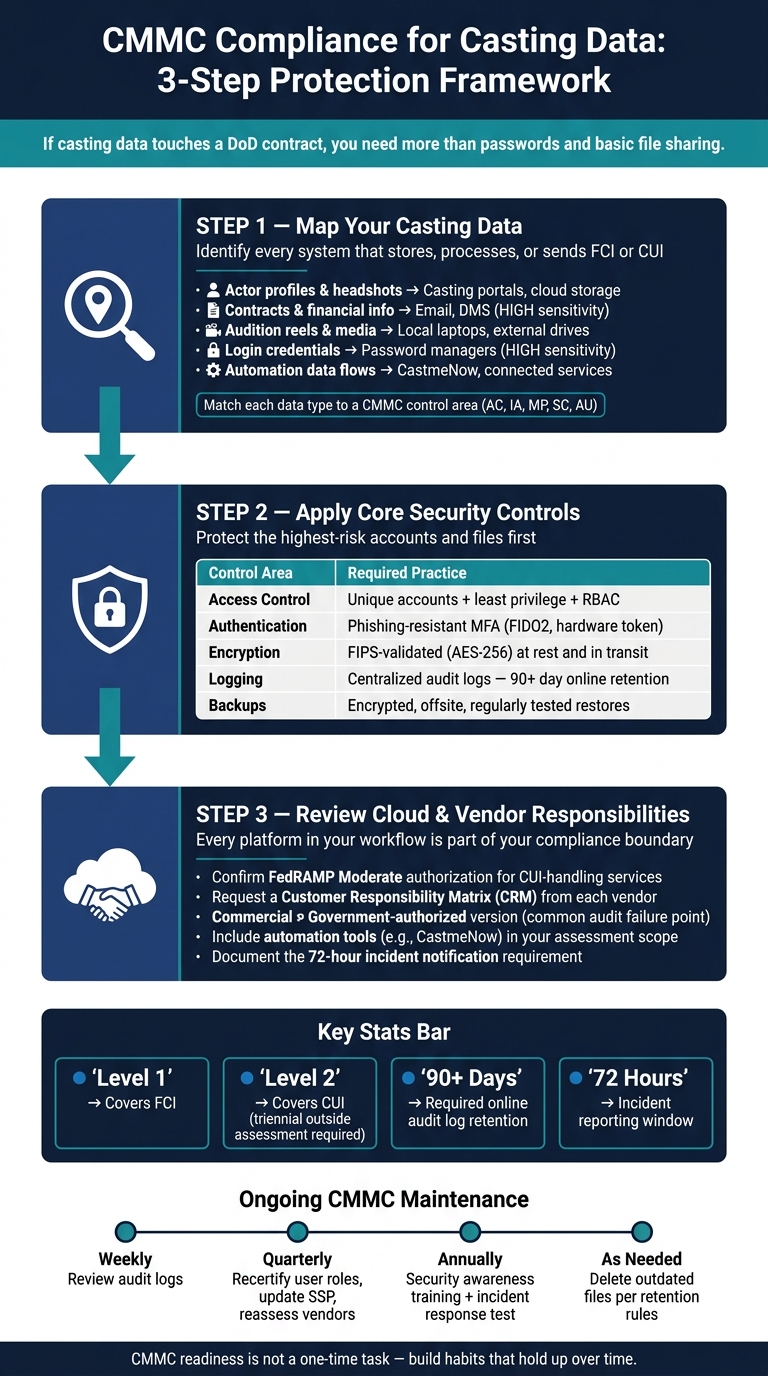
CMMC Compliance for Casting Data: 3-Step Protection Framework
The FASTEST Way to CMMC Compliance - CUI Enclaves
sbb-itb-daa9c42
Step 1: Map casting data to CMMC requirements
Before you put any security controls in place, get clear on where your data lives. That sounds basic, but it’s where a lot of teams slip.
Casting data tends to end up everywhere: email, cloud storage, personal devices, and third-party apps. If you map it first, you can properly scope CUI and FCI and make sure your protections cover every system that creates, stores, or sends that data.
List every place actor data is stored or shared
Start by listing every system that creates, stores, or shares actor data.
Actor profiles and headshots often sit in casting portals or cloud storage. Contracts and payment details usually live in email inboxes, contract folders, or a document management system. Audition reels may be saved on local laptops, external drives, or uploaded to shared cloud storage. Login credentials often end up in browsers or a password manager. Email and team chat matter too, because they can carry sensitive context, like an actor’s availability or project-specific instructions.
Include automation layers like CastmeNow in the same data-flow map and assessment boundary. If a tool moves actor data between connected systems, it’s part of the security boundary, not some side tool you can ignore.
Match data types to CMMC control areas
Once you know where the data is, match each type to the CMMC control area that applies to it.
Login credentials fall under Identification & Authentication (IA), which covers multi-factor authentication and password rules. Actor profiles, résumés, and contact details fall under Access Control (AC), which sets who can view or export that data. Headshots, reels, and downloaded media fall under Media Protection (MP). Audition files and contracts in transit fall under System & Communications Protection (SC), which requires encryption. Activity on profiles and submissions falls under Audit & Accountability (AU), which tracks access and changes.
Use a simple data scope table
Use the table below to assign access roles and mark high-sensitivity rows first.
| Data Type | Typical Storage Location | Sensitivity Level | Who Can Access | CMMC Control Area |
|---|---|---|---|---|
| Actor Profiles & Headshots | Casting Portals, Cloud Storage | Medium | Casting Team, Producers | Access Control (AC) |
| Contracts & Financial Info | Email, Contract Folders, DMS | High | Legal, HR, Lead Producers | Identification & Authentication (IA) |
| Audition Reels & Media | Local Laptops, External Drives | Medium | Casting Directors, Directors | Media Protection (MP) |
| Login Credentials | Password Manager, Browsers | High | Individual Users Only | Identification & Authentication (IA) |
| Communication Threads | Email, Team Chat | Medium | Internal Team | Audit & Accountability (AU) |
| Automation Data Flows | CastmeNow, Connected Services | Medium/High | Authorized Users | System & Communications Protection (SC) |
Put extra focus on any row that contains CUI. That gives you a clean way to decide which accounts, files, and systems need access controls, encryption, and logging first.
Step 2: Apply controls that protect casting data
Now that you have the data map from Step 1, it's time to put protections in place. Start with the scope table and tackle the highest-risk accounts and files first. The goal is simple: only the right people get access to actor data, that data stays encrypted wherever it sits, and you keep a clear trail showing who did what.
Restrict access to accounts and actor files
Use least privilege. Each person should get only the access needed for their role. Shared logins make it hard to tell who did what, and they do not meet CMMC Level 2. If actor files contain FCI or CUI, access needs to be tightly controlled by role.
Set up individual accounts and assign permissions with Role-Based Access Control (RBAC). Pair each account with phishing-resistant MFA - MFA that an attacker can't easily reuse, such as an authenticator app, hardware token, or FIDO2 key - and set sessions to lock after a period of inactivity. For remote access, route traffic through approved access gateways or an encrypted VPN, and turn off split tunneling.
Encrypt files, uploads, and stored credentials
Any in-scope casting file, especially one with FCI or CUI, needs encryption at rest and in transit. Begin with the rows marked high sensitivity in your scope table. CMMC Level 2 calls for FIPS-validated encryption, such as AES-256.
Stored credentials need attention too. Ban password reuse and rotate temporary credentials right away. If you have remote staff, send their access through an encrypted VPN and disable split tunneling so all traffic stays inside the managed access path.
Don't skip connected automation tools. If a tool handles submission data or account access, it needs the same review as your main systems.
Track activity and maintain backups
Logging shows that your controls are doing more than just sitting there turned on. You need records of logins, file access, profile changes, and admin actions. Those records should be stored in one place and protected from tampering. CMMC requires at least 90 days of online log retention to support forensic investigations.
Assessors will want proof that logging works, including configuration screenshots, sample exports, and a defined review process.
Backups should be automated, encrypted, and stored offsite from primary systems. You also need to test restores on a regular basis. These internal controls set up the cloud and vendor review in Step 3.
| Practice | Common Practice | Required Practice |
|---|---|---|
| Access Control | Shared passwords for agency portals or shared drives | Unique accounts for every user; least privilege and RBAC enforced |
| Authentication | Single-factor or SMS-based MFA | Phishing-resistant MFA with authenticator apps or hardware tokens |
| Encryption | Standard cloud storage; email attachments often unencrypted | FIPS-validated encryption for data at rest and in transit |
| Logging | Minimal logs; often only "last modified" dates on files | Centralized, tamper-resistant audit logs; 90+ day online retention |
| Backups | Ad-hoc backups to external drives or personal cloud accounts | Encrypted, automated backups stored offsite; regularly tested restore process |
These controls cover the internal workflow. The next step is checking cloud and vendor responsibilities.
Step 3: Check cloud and vendor responsibilities
Your internal controls matter. But they’re only part of the picture.
Every platform, cloud service, and connected tool in your workflow has its own security posture. If one of them has a weak spot, that weak spot can become your compliance issue. So before you trust any service with casting data, check what it actually does to protect that data - not just what its sales page claims. Once your own workflow is locked down, review every vendor that stores, moves, or processes that data.
Review hosting, incident response, and data isolation
Start with three plain questions for every service you use: How is stored data protected? What happens when something goes wrong? How is your data kept separate from other customers?
Ask for documented incident response procedures. Those should include breach-notification timelines and evidence-preservation steps.
If your workflow touches CUI, the cloud service should meet FedRAMP Moderate or an equivalent bar. In practice, that means the service is authorized to the FedRAMP Moderate baseline and has been independently assessed by a 3PAO.
One detail gets missed all the time: a tool’s commercial version is not the same as its government-authorized version. Using the commercial version instead of the authorized one is a common reason assessments fail.
Document who is responsible for what
Write down the responsibility split for each vendor before you approve it.
The platform secures its service. You secure what sits on your side. Sounds simple, but the exact line depends on the tool and how you use it.
Ask each vendor for a Customer Responsibility Matrix (CRM). This is a control matrix that shows who handles each security practice, where that control operates, and what evidence backs it up. If a vendor can’t provide one, take that seriously.
Here’s where responsibilities usually land:
| Responsibility Area | Vendor/Platform | You |
|---|---|---|
| Infrastructure | Physical data center security and hypervisor management | Securing local devices and office networks |
| Access Control | Providing MFA support and internal access audits | Managing user accounts, permissions, and access revocation |
| Data Handling | Encrypting data at rest and in transit within the service | Classifying data correctly; uploading CUI only to authorized environments |
| Incident Response | Reporting service-level breaches and maintaining response procedures | 72-hour incident notification and maintaining your own recovery process |
| Connected Tools | Secure API connections and data minimization | Reviewing tool permissions and monitoring account activity |
Include connected automation tools in the review
Automation tools count too. Treat them as part of the same security boundary.
If a tool connects to casting profiles or handles submissions, it belongs in the vendor review. This is where scope creep can sneak in. Add a new automation tool without reassessing scope, and your compliance posture can weaken quietly in the background.
CastmeNow connects to casting profiles and handles submission activity on the actor's behalf, so it should sit inside your assessment scope. On the permissions side, CastmeNow uses a narrowly scoped Gmail permission (gmail.send) that lets it send replies but not read inboxes. That matters when you document access control. Users can also revoke third-party integrations at any time through their dashboard. As part of the vendor review, confirm that access stays limited to authorized users and that you can review automation tracking through the platform’s analytics.
Conclusion: Build a safer casting workflow with lasting CMMC habits
Once your controls are in place, the work shifts from setup to upkeep. CMMC readiness is not a one-time task. You need to keep access, encryption, logging, backups, and vendor duties under review.
Review the CUI boundary on a set schedule so new tools, files, and users don’t drift out of scope. If you use CastmeNow for automated submissions, keep it in your vendor review cycle and confirm that only authorized users can trigger activity.
The simplest way to stay compliant is to repeat a small set of checks on a fixed schedule.
Key actions to repeat over time
| Frequency | Action |
|---|---|
| Weekly | Review audit logs for unauthorized access, failed logins, and privilege changes |
| Quarterly | Recertify user roles, remove inactive accounts, update the SSP and network diagrams, and reassess connected tools and vendor responsibilities |
| Annually | Run security awareness training for anyone handling sensitive casting data and test your incident response plan |
| Periodic | Verify backup health and encryption status |
| As needed | Delete outdated files using approved retention rules |
Use a fixed review cycle: check access, verify encryption, review logs, test backups, and update documentation when anything changes. Repeat the checks, update the records, and keep the workflow within scope.
FAQs
How do I know whether my casting data is FCI or CUI?
FCI is information the government gives you under a contract, or information you create for the government under that contract, that isn't meant for public release.
CUI is a more sensitive type of unclassified government information. It can include things like technical data, financial records, or PII, and it comes with specific handling and protection rules.
To spot CUI, check documents and emails for official markings. You can also look at the National Archives’ CUI Registry to see whether the information falls into a regulated category.
What systems are most often missed in CMMC scope?
The systems most often missed are the ones quietly touching Federal Contract Information or Controlled Unclassified Information without anyone meaning for them to.
Most contractors look at the obvious places first. That makes sense. They check the main repositories and the systems everyone already knows hold sensitive data. But the bigger problem usually sits in the background: systems that process, store, or transmit covered information without being treated like they’re in scope.
Auxiliary systems get missed all the time for that reason. They’re often left out until an assessment shows they were, in fact, handling covered information. At that point, the gap is no longer theoretical - it’s on the table.
A dedicated, isolated enclave can help cut down these scope gaps.
What should I ask a cloud vendor before using it?
First, ask whether the vendor processes, stores, or transmits Controlled Unclassified Information (CUI). If the answer is yes, the vendor falls under CMMC assessment rules and must meet FedRAMP Moderate equivalency.
Don’t take marketing claims or certification lists at face value. Check compliance by reviewing the vendor’s 3PAO-supplied evidence. If the vendor can’t meet that bar, use tokenization to keep CUI out of the vendor’s environment, or don’t use that vendor for sensitive data.