Reel Upload Errors: Q&A for Casting Platforms

Most reel upload problems come from four things: file type, codec, file size, or playback processing. If I export my reel as MP4, H.264, AAC, 720p or 1080p, 16:9, with constant frame rate, I avoid most failures before they start.
Here’s the short answer:
- Use MP4 or MOV, but make sure the video codec is H.264
- Use AAC stereo audio
- Export at 720p or 1080p
- Keep frame rate constant, not variable
- Stay within each platform’s file size and runtime limits
- If playback looks bad right after upload, wait for transcoding to finish first
A few numbers matter here:
- 720p is often the safest upload target for reels
- Dropping from 1080p to 720p can cut file size by about 40%
- Some platforms may take up to 3x the video length to finish processing
- Common platform caps range from about 300 MB to 2 GB
If my reel won’t upload, I check the file before I blame the site. If it uploads but looks blurry, choppy, or out of sync, I check whether the platform is still processing it, then I look at frame rate, bitrate, and audio settings.
| Issue | What I check first | Common fix |
|---|---|---|
| Upload rejected | Codec or file container | Re-export as MP4 + H.264 + AAC |
| Upload stalls | Internet or browser | Clear cache, pause sync apps, retry |
| File too large | Bitrate, resolution, runtime | Trim reel or export at 720p |
| Choppy playback | Variable frame rate or interlaced video | Re-export with constant frame rate |
| Missing audio | Unsupported audio settings | Re-export with AAC stereo |
| Blurry video after upload | Platform still processing | Wait a few minutes, then test again |
Bottom line: if I keep my reel short, export it in a web-safe format, and test it before uploading, I cut down most upload and playback problems fast.
Unsupported File Types and Encoding Errors
File extensions can fool you. A video may look right on the outside, but the codec inside decides whether a platform can read it. So if your reel matches the posted specs and still won’t upload, the issue is often buried in the file itself.
Why a File Can Be Rejected Even When the Extension Looks Correct
A .mov file isn’t always safe. It can still fail if it uses ProRes, an editing codec that many platforms don’t handle well.
Other troublemakers include AVI, WMV, MKV files with nonstandard audio, and older codecs like DivX or Xvid.
Phone footage causes its own mess. Many phones record in VFR by default, while platforms and browser players usually expect constant frame rate, or CFR. If you’re uploading phone footage, re-export it as CFR first.
Export Settings That Work Across Casting Platforms
The safest export uses CFR and keeps the frame rate matched to the source footage. 23.976, 24, 25, 29.97, or 30 fps are common settings. For 1080p video, 8–12 Mbps is a solid target.
It also helps to skip exports made through social apps. Those files often come with color shifts, bitrate changes, or metadata problems that can trip up transcoding.
Before you export, check the platform’s help page. Every casting site sets its own limits for file size, video length, and accepted formats.
How to Re-Encode a Reel Before Uploading Again
If the codec or frame rate is the problem, don’t upload the same file again and hope for a better result. Re-export it.
A safe setup usually looks like this:
- H.264 video
- AAC audio
- CFR enabled
- A web or HD preset
If you already have a problem file, use HandBrake to transcode it into a cleaner version. Then test that new file on both desktop and mobile before uploading it again.
sbb-itb-daa9c42
Oversized Files, Duration Caps, and Slow Uploads
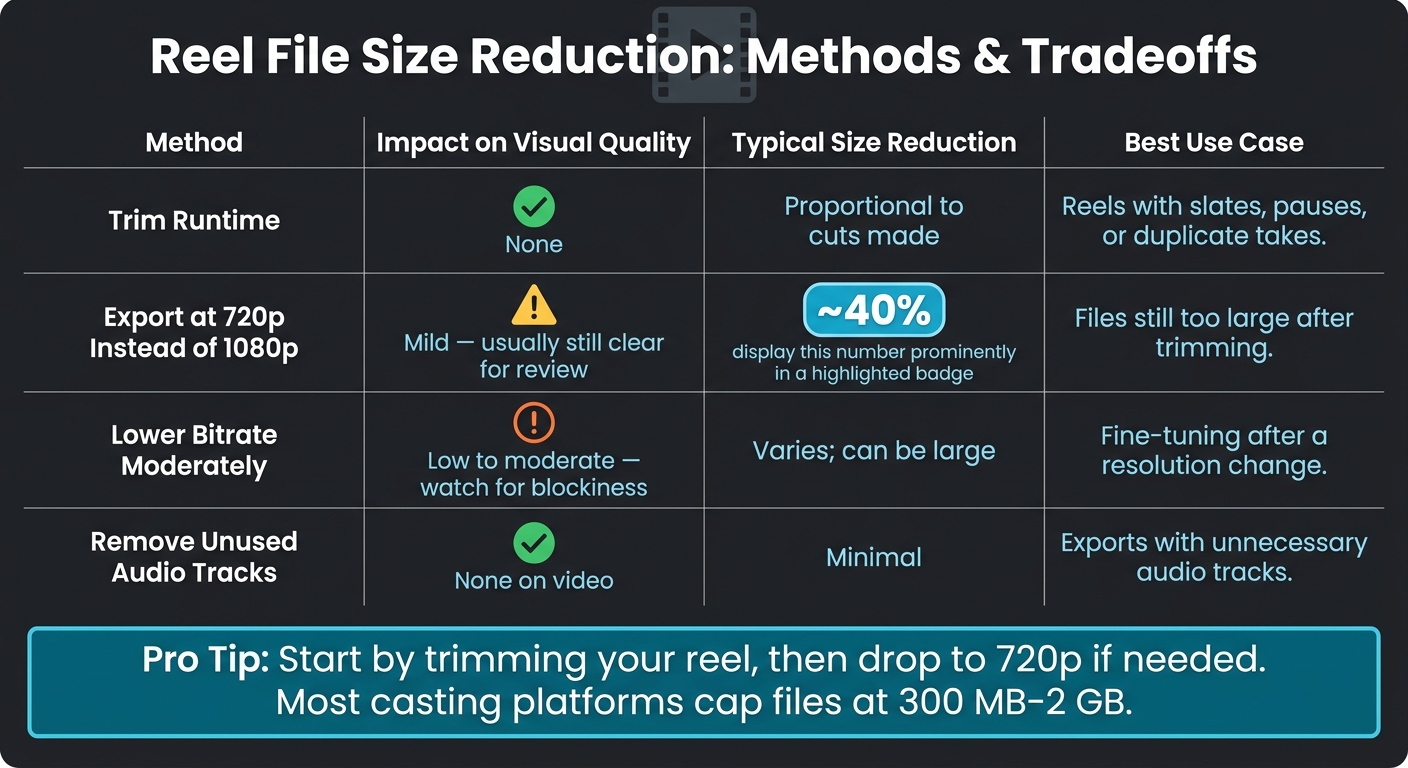
Reel Upload File Size Reduction Methods: Tradeoffs at a Glance
Once the format and encoding are set, the next thing that tends to trip people up is file size or upload speed. If a platform says your reel is too large or too long, start with the basics: check the file-size limit and the runtime cap. Then cut the reel to fit before you upload it again.
How to Cut File Size Without Hurting Reel Quality
File size mostly comes down to bitrate and duration. In many cases, the cleanest fix is to shorten the reel. That works well because you're removing dead air instead of lowering the quality of the footage that stays in.
A lot of reels have easy cuts hiding in plain sight. Think intro slates, long pauses, or repeated beats. Tightening those sections can often get you down to the platform limit while leaving only the strongest material.
If trimming still doesn't get the job done, export the reel at 720p. Casting Networks recommends 720p as "the best balance of quality and file size" for actor media. That drop in resolution can cut file size by about 40%.
When Upload Stalls Often Come from the Connection or Browser
If your file already matches the platform specs but the upload still hangs, the problem is often your connection or browser, not the file itself. Here's a simple clue: if the same file uploads on one device but stalls on another, the issue usually isn't encoding.
At that point, try the plain fixes first:
- Check your upload speed
- Pause cloud-sync apps
- Clear browser cache and cookies
- Switch to a wired connection
- Try again in an updated browser
File Size Reduction Methods: Tradeoffs at a Glance
| Approach | Impact on Visual Quality | Typical Size Reduction | Best Use Case |
|---|---|---|---|
| Trim runtime | None; it removes footage rather than detail | Proportional to cuts made | Reels with slates, pauses, or duplicate takes |
| Export at 720p instead of 1080p | Mild; usually still clear for review | ~40% | Files still too large after trimming |
| Lower bitrate moderately | Low to moderate; watch for blockiness or soft facial detail | Varies; can be large | Fine-tuning after a resolution change |
| Remove unused audio tracks | None on video | Minimal | Exports with unnecessary audio tracks |
Playback Problems After a Reel Uploads
A finished upload doesn't always mean the reel is ready to play well. On many platforms, the file still has to be transcoded after upload. During that window, you might see blurry playback, jerky motion, or a short wait before the full-quality version shows up. If playback still looks bad after processing is done, the next place to look is your export settings.
Why Uploaded Reels Look Blurry, Choppy, or Delayed at First
Right after upload, a lot of platforms show a low-resolution preview while the higher-quality versions are still being processed. Brightcove says transcoding can take up to three times the video's duration. So if your reel is 2 minutes long, it may need about 6 minutes before it plays the way it should.
If it still looks soft or choppy after that, the export is likely the issue. The usual suspects are low bitrate, an odd frame rate, or interlaced footage. Web and mobile players tend to handle progressive H.264 files better than interlaced video. Brightcove also recommends using source files with 2–3 times the bitrate of the final version the platform will generate, because a weak master file often leads to weak playback after compression.
How to Fix Missing Audio, Sync Problems, and Black Screens
These issues usually point to export settings, not a failed upload. If the reel isn't just waiting on processing, audio and sync are the next things to check.
Missing audio can happen when the track was muted during export, the audio codec isn't supported, or the file uses nonstandard audio channels. The safest move is to re-export the reel as MP4 with H.264 video and AAC stereo audio.
Sync problems are often tied to variable frame rate footage or audio and video tracks that don't match in length. If the two tracks don't end at the same point in the export, they can drift apart during playback. Re-exporting with a constant frame rate and matching track lengths usually fixes it.
A black screen with audio still playing often points to a browser or device playback problem. Test the same reel in Chrome, Safari, and Firefox, and on both desktop and mobile. If it works in one browser but not another, try clearing the cache or disabling extensions before you re-export.
Playback Symptom Diagnostic Table
| Playback Symptom | Likely Technical Cause | Suggested Fix |
|---|---|---|
| Blurry or soft image right after upload | Platform still transcoding; low-res preview showing | Wait for processing; recheck playback. |
| Choppy or stuttering motion | Interlaced footage or variable frame rate | Re-export as progressive H.264 with CFR. |
| Audio missing entirely | Muted track, unsupported codec, or nonstandard audio channels | Re-export with AAC stereo audio in MP4. |
| Audio out of sync with video | Track duration mismatch or variable frame rate | Match audio/video lengths and use CFR. |
| Black screen on one device or browser; plays elsewhere | Browser or device playback issue | Test on another browser and device; use H.264/AAC MP4. |
| Delayed playback after upload | Transcoding still in progress | Wait and recheck; don't re-upload the same file immediately. |
If playback still fails after processing, figure out whether the problem comes from the export, the browser, or the device before you upload again. If the reel plays correctly, move on to file-size and duration limits.
Platform Limits, Reel Selection, and a Final Upload Checklist
Once your reel plays the way it should, the next step is simple: make sure it fits each platform's rules. Those limits affect not just whether a file uploads, but which reels are worth keeping ready to go.
How Upload Limits Should Shape Your Reel Choices
After format and playback are sorted out, platform caps usually make the call. Casting Networks lists video file limits around 300–600 MB, Actors Access accepts files up to 1 GB but discourages uploads over 500 MB, and Backstage allows up to 2 GB and 10 minutes per file.
The safest move is to work from the strictest limit. In practice, that means keeping your reel library tight: one main theatrical reel, one short commercial reel, and only the specialty clips you plan to submit.
It also helps to cut anything that no longer matches your current look, age range, or skill set. Old footage doesn't just take up space. It can make casting pause if your reel feels out of sync with your headshots. If you want a simpler way to keep track of what lives where, Castmenow (Cast Me Now) can track which reels and clips are already uploaded across connected profiles.
Final Checklist Before Uploading a Reel Again
Use this as a last pass before you upload.
| Step | What to Check |
|---|---|
| Format | MP4 container, H.264 video, AAC audio |
| Resolution & bitrate | 1080p or 720p; 4–10 Mbps video bitrate |
| File size & runtime | Stay under the platform cap; keep reels as short as the submission allows |
| Upload environment | Wired or strong Wi-Fi, updated browser, cache cleared, no extra tabs or bandwidth-heavy apps |
| Processing wait | Allow several minutes after upload before checking playback |
| Playback test | Check image sharpness, audio sync, and black frames |
If every box is checked, upload it.